
Weight Watchers Scales Instruction Manual: A Comprehensive Guide
Welcome! This comprehensive guide details operation of your Weight Watchers scale, covering setup, user profiles, app connectivity, and troubleshooting for optimal weight tracking.
This manual supports models like WW711F and Argos 832/1846, offering a pathway to successfully manage your weight and health journey.
Congratulations on choosing a Weight Watchers scale! This device is designed to be a valuable tool on your wellness journey, providing accurate weight measurements and, depending on the model, insightful body analysis data.
By taking this step, you’ve demonstrated a commitment to taking control of your health. This scale isn’t just about numbers; it’s about empowering you with information to make informed decisions.
This manual will guide you through every aspect of your scale, from initial setup and user profile creation to connecting with the Weight Watchers app for seamless data tracking. It supports various models, including WW711F and Argos 832/1846, ensuring a user-friendly experience for all.
Prepare to unlock a more informed and successful path towards your weight management goals!
Unboxing and Initial Setup
Carefully remove your Weight Watchers scale from its packaging. Ensure all components are present: the scale itself, battery (often included, but verify), and this instruction manual. Inspect the scale for any visible damage that may have occurred during shipping.
Before first use, it’s recommended to read through all instructions to familiarize yourself with the scale’s features and operation. Place the scale on a hard, level surface – carpet or uneven flooring can affect accuracy.
Insert the batteries into the designated compartment, observing the correct polarity (+/-) markings. The scale should briefly display a welcome message or initiate a self-test upon power-up. You are now ready to proceed with user setup!
Understanding the Scale’s Features
Your Weight Watchers scale is designed for accurate weight measurement and, depending on the model, offers advanced body analysis. Key features include a high-precision sensor system for reliable readings, a large, easy-to-read digital display, and multi-user capability – supporting up to four individual profiles.
Some scales integrate seamlessly with the Weight Watchers app via Bluetooth, automatically syncing your weight data. Advanced models provide insights into body fat percentage, muscle mass, water percentage, and calculate your BMI.
Familiarize yourself with the buttons for power, user selection, and unit switching (lbs, kg, st). Understanding these features will maximize your experience.
Powering On and Basic Operation
To power on your Weight Watchers scale, simply tap the power button, usually located on the front or side. The display will illuminate, indicating the scale is ready for use. Ensure the scale is placed on a hard, level surface for accurate readings.
Step onto the scale with both feet, distributing your weight evenly. Avoid movement while the scale is measuring. The weight will be displayed on the screen within seconds.
The scale will automatically power off after a period of inactivity to conserve battery life. Basic operation involves simply stepping on and off to obtain your weight.
User Profile Creation & Management
Your Weight Watchers scale can store data for multiple users – up to four, as indicated in the documentation. Creating individual profiles allows for personalized tracking and accurate data synchronization with the Weight Watchers app.
The initial setup may involve entering basic information like age, gender, height, and weight for each user. This data is crucial for calculating metrics like BMI.
Managing profiles includes adding new users, deleting existing ones, and seamlessly switching between them to ensure each person’s measurements are recorded correctly. Refer to the specific instructions for your model.
Adding a New User
To add a new user to your Weight Watchers scale, begin by ensuring the scale is powered on and in pairing mode (consult your model’s specific instructions). Within the Weight Watchers Scales by Conair app, navigate to the “Users” or “Profiles” section.
Select the option to “Add User” and follow the on-screen prompts. You’ll be asked to input personal details such as age, gender, height, and starting weight. Accurate information is vital for precise calculations.
Once entered, the scale will assign a unique identifier to the new user, allowing for automatic recognition during subsequent weigh-ins.
Deleting a User Profile
If a user no longer requires access to the scale’s tracking features, their profile can be deleted through the Weight Watchers Scales by Conair app. Navigate to the “Users” or “Profiles” section within the app.
Locate the profile you wish to remove and select the “Delete User” or similar option. The app may request confirmation to prevent accidental deletion. Be aware that all associated weight data will be permanently removed from the scale and the app.
Ensure the correct profile is selected before confirming deletion, as this action is irreversible.
Switching Between Users
Your Weight Watchers scale supports multiple user profiles, allowing each individual to track their weight independently. To switch users, ensure the scale is powered on and in standby mode.
Typically, you can cycle through users by briefly pressing a user button on the scale – often indicated by a person icon or numbered buttons. The scale’s display will show the user ID or name of the currently selected profile.
Confirm the correct user is selected before stepping onto the scale for measurement. Some models may require confirmation within the connected app.
Weight Measurement Process
To obtain an accurate weight reading, place the scale on a hard, level surface. Step onto the scale with your feet evenly distributed. Avoid leaning against anything for support.
The scale will automatically power on and display your weight after a brief moment. Remain still during the measurement process. The reading will typically stabilize within a few seconds.
Ensure your weight is within the scale’s capacity. Avoid sudden movements or shifting your weight while the scale is measuring. The display will show your weight in the selected unit (lbs, kg, or st).
Units of Measurement (lbs/kg/st)
Your Weight Watchers scale offers flexibility in displaying weight measurements. You can choose between pounds (lbs), kilograms (kg), and stones (st) to suit your preference.
To switch between units, locate the unit button – typically on the underside of the scale. Pressing this button cycles through the available options. The selected unit will be displayed on the screen.
Ensure the correct unit is selected before each measurement for accurate tracking. Consistent use of a single unit is recommended for monitoring weight loss or gain effectively. Refer to the scale’s specific model instructions for precise button location.
Connecting to the Weight Watchers App
Seamlessly integrate your scale with the Weight Watchers app for effortless weight tracking and progress monitoring. The app, available for free download, enhances your weight management journey.
To begin, download and install the “Weight Watchers Scales by Conair” app from your device’s app store. Once installed, enable Bluetooth on your smartphone or tablet. Open the app and follow the on-screen prompts to create an account or log in.
The app will guide you through the Bluetooth pairing process, allowing your scale to synchronize data automatically. Consistent synchronization ensures accurate record-keeping and insightful progress reports.

Downloading and Installing the App
To unlock the full potential of your Weight Watchers scale, downloading and installing the companion app is essential. The app, titled “Weight Watchers Scales by Conair,” is readily available on both the Apple App Store for iOS devices and the Google Play Store for Android.
Simply search for the app name in your respective app store and tap the “Install” button. The download process will begin automatically, and once complete, an app icon will appear on your home screen.
Launch the app to initiate the setup process, which includes creating an account or logging in with existing Weight Watchers credentials.
Bluetooth Pairing Instructions
Ensure Bluetooth is enabled on your smartphone or tablet before proceeding. Open the Weight Watchers Scales app and navigate to the “Devices” or “Connect Scale” section. The app will begin searching for nearby Bluetooth devices.
On your Weight Watchers scale, initiate pairing mode – typically by pressing and holding a button on the scale (refer to the “Understanding the Scale’s Features” section for button locations). The scale should display a Bluetooth icon or a pairing indicator.
Select your scale from the list of available devices within the app. A pairing request may appear; confirm to establish a connection.
Data Synchronization and Troubleshooting
Once paired, your scale will automatically synchronize weight data with the Weight Watchers app each time you step on it. Ensure your smartphone is within Bluetooth range during measurement. Check the app’s history to confirm successful data transfer.
Troubleshooting: If synchronization fails, verify Bluetooth is enabled and the scale is still paired within the app settings; Restart both the scale and the app. Ensure the app has necessary permissions (Bluetooth access). If issues persist, try unpairing and re-pairing the scale.
For continued problems, consult the “App Connectivity Problems” section or the official Weight Watchers support resources.
Understanding Body Analysis Features (If Applicable)
Certain Weight Watchers scales offer advanced body analysis, providing insights beyond just weight. These features may include Body Fat Percentage, estimating fat mass versus lean mass. Muscle Mass indicates skeletal muscle content, while Water Percentage reflects total body water.

The scale calculates BMI (Body Mass Index), a ratio of weight to height, categorizing weight status. Remember, these measurements are estimates and shouldn’t replace professional medical advice. Accuracy can be affected by hydration levels and individual body composition.
Refer to the app for detailed explanations of each metric and their significance.
Body Fat Percentage
Body Fat Percentage estimates the proportion of your body weight that is fat. This metric is crucial as it differentiates between weight from muscle, bone, and fat. A healthy body fat range varies based on age and gender; the app provides personalized guidance.

The scale utilizes bioelectrical impedance analysis (BIA) to estimate this percentage, sending a small, harmless electrical signal through your body. Hydration levels significantly impact BIA accuracy – ensure consistent hydration for reliable readings.
Remember, this is an estimation, and professional assessments offer more precise measurements.
Muscle Mass
Muscle Mass represents the weight of your muscles. Tracking this metric is valuable as muscle contributes to your metabolism and overall strength. An increase in muscle mass can positively impact weight management and physical performance.
Like body fat percentage, the scale estimates muscle mass using bioelectrical impedance analysis (BIA). Consistent hydration is vital for accurate readings, as water content affects the electrical signal. Remember that BIA provides an estimation, not a definitive measurement.
Focus on a balanced diet and exercise routine to build and maintain healthy muscle mass.
Water Percentage
Water Percentage indicates the proportion of water in your body. Maintaining adequate hydration is crucial for numerous bodily functions, including metabolism, nutrient transport, and temperature regulation. This metric helps assess your hydration levels and overall health.
The scale estimates water percentage using bioelectrical impedance analysis (BIA). Factors like recent fluid intake, exercise, and even menstruation can influence readings. Consistent measurement times and proper hydration are key for reliable results.
Aim for a healthy water percentage range, and remember that BIA provides an estimate, not a precise measurement.
BMI Calculation
Body Mass Index (BMI) is a calculation using your weight and height to estimate body fat. It’s a widely used screening tool to categorize weight into underweight, normal weight, overweight, and obese ranges.
The scale automatically calculates your BMI after you input your height. While BMI is a useful indicator, it doesn’t directly measure body fat and doesn’t account for muscle mass, age, or gender.
Use BMI as a general guideline, and consider consulting a healthcare professional for a more comprehensive assessment of your health status. Understanding your BMI can aid in setting realistic weight management goals.
Calibration and Accuracy
Maintaining accuracy is crucial for reliable weight tracking. While most Weight Watchers scales are pre-calibrated, occasional recalibration may be needed, especially after relocation or battery replacement. Refer to your scale’s specific model instructions for calibration procedures.
Ensure the scale is placed on a hard, level surface. Avoid carpets or uneven flooring. For optimal results, step onto the scale with consistent foot placement.
If you consistently observe inaccurate readings, check the batteries and recalibrate. If issues persist, contact customer support. Regular checks contribute to dependable weight measurements.
Troubleshooting Common Issues
Scale Not Turning On: First, verify battery installation and ensure they aren’t depleted. Try replacing them with fresh batteries. If the issue persists, inspect the battery compartment for corrosion.
Inconsistent Readings: Ensure the scale is on a hard, level surface. Avoid carpets. Step on consistently, centering your weight. Recalibrate the scale following the manual’s instructions.
App Connectivity Problems: Confirm Bluetooth is enabled on your device. Ensure the scale is in pairing mode. Restart both the scale and your mobile device. Check for app updates.
Scale Not Turning On
Initial Checks: Begin by verifying the batteries are correctly installed, paying attention to polarity (+/-). Even seemingly new batteries can be faulty; try a different set from a fresh pack.
Battery Inspection: Carefully examine the battery compartment for any signs of corrosion or debris. Clean the contacts with a dry cloth if necessary. Corrosion can prevent a proper connection.
Power Cycle: Remove the batteries completely, wait approximately 30 seconds, and then reinsert them. This can sometimes reset the scale’s internal components. If still unresponsive, consider contacting support.
Inconsistent Readings
Surface Check: Ensure the scale is placed on a hard, level surface. Carpets, rugs, or uneven flooring can cause inaccurate measurements; A stable foundation is crucial for reliable results.
Weight Distribution: Stand still with your weight evenly distributed across both feet. Avoid shifting your weight or flexing your muscles during measurement. Consistent posture is key.
Calibration: If inconsistencies persist, refer to the “Calibration and Accuracy” section for instructions on recalibrating the scale. Periodic calibration ensures optimal performance. Contact support if issues remain.
App Connectivity Problems
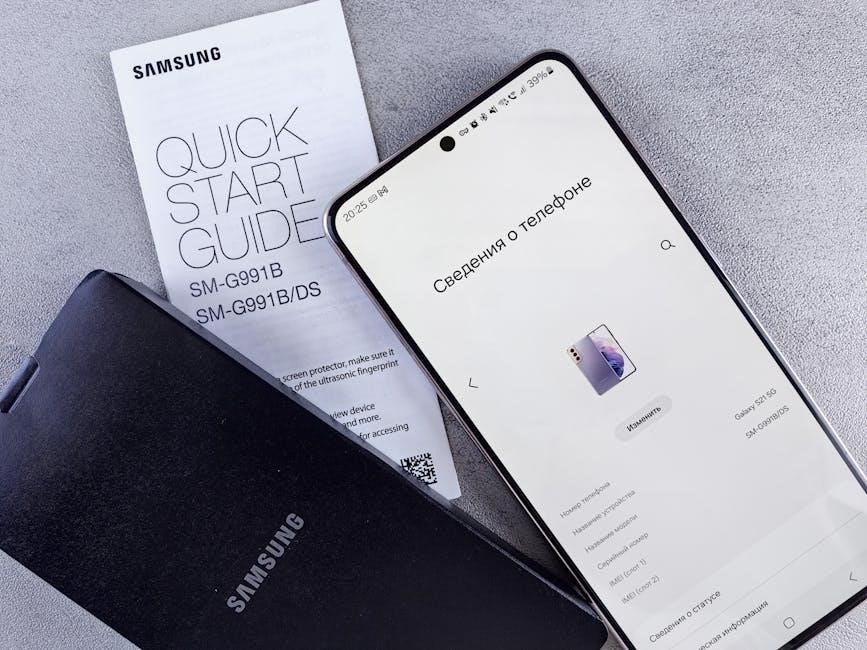
Bluetooth Status: Verify Bluetooth is enabled on your smartphone or tablet. Ensure the scale is within range of your device during pairing and synchronization. Proximity matters for a stable connection.
App Permissions: Confirm the Weight Watchers app has the necessary permissions (Bluetooth, location if prompted) in your device’s settings. Permission access is vital for functionality.
Restart & Re-Pair: Try restarting both your scale and your mobile device; If problems continue, delete the scale from the app and re-pair it following the “Bluetooth Pairing Instructions.”
Safety Precautions and Warnings
Electrical Safety: When using electrical appliances, especially around children, always follow basic safety instructions. Avoid using the scale near water sources to prevent electric shock. Inspect the power adapter for damage before each use.
Scale Placement: Place the scale on a hard, level surface for accurate readings. Avoid carpets or uneven flooring. Ensure the scale is stable before stepping on it.
Medical Considerations: This scale is not a medical device. Consult your physician for health concerns. Do not rely solely on scale readings for medical diagnoses or treatment decisions.
Battery Replacement and Care
Battery Type: Your Weight Watchers scale requires appropriate batteries for operation. Refer to the scale’s documentation for the correct battery type and quantity. Typically, it uses AAA or AA batteries.
Replacement Procedure: To replace batteries, locate the battery compartment (usually on the back or bottom of the scale). Open the compartment and insert new batteries, matching the polarity (+ and -) indicated.
Battery Care: Remove batteries if the scale will not be used for an extended period to prevent leakage. Dispose of used batteries responsibly, following local regulations. Avoid mixing old and new batteries.
Cleaning and Maintenance
Regular Cleaning: To maintain accuracy and hygiene, clean your Weight Watchers scale regularly. Use a slightly damp cloth to wipe the surface. Avoid using harsh chemicals, abrasive cleaners, or immersing the scale in water.
Surface Protection: Place the scale on a hard, level surface. Avoid carpets or uneven flooring, as this can affect readings. Protect the scale from extreme temperatures and direct sunlight.
Storage: When not in use, store the scale in a dry, cool place. Handle with care to prevent damage. Proper cleaning and storage will ensure long-lasting performance.
Frequently Asked Questions (FAQ)
Q: Why isn’t my scale turning on? Ensure fresh batteries are correctly installed. Q: Readings are inconsistent; what should I do? Verify the scale is on a hard, level surface and avoid movement during measurement.
Q: How do I reset the scale? Remove batteries for 30 seconds, then reinsert. Q: Can multiple users share one scale? Yes, the scale supports up to four user profiles. Q: Why won’t the scale connect to the app? Ensure Bluetooth is enabled on your device and the scale is in pairing mode.
Q: What if the app isn’t syncing? Restart both the scale and the app.
Warranty Information
Your Weight Watchers scale is warranted against defects in materials and workmanship for a period of one year from the date of original purchase. This warranty covers normal household use. Damage resulting from misuse, abuse, accidents, or unauthorized modifications is excluded;
To make a warranty claim, retain your proof of purchase and contact Conair customer service. The warranty does not cover battery replacement or shipping costs. Conair will, at its option, repair or replace the defective scale.
This warranty gives you specific legal rights, and you may have other rights which vary by location.
Where to Find Additional Support
For comprehensive support and frequently asked questions, visit the official Weight Watchers website or the Conair website. Both platforms offer detailed guides, troubleshooting tips, and access to a community forum where users share experiences.
Conair’s customer service team is available via phone or email to address specific concerns. You can find contact information on their website or within the product packaging.
The Weight Watchers app also provides helpful resources and support articles. Don’t hesitate to explore these avenues for assistance with your scale and its features.

Appendix: Scale Model Specific Instructions (WW711F, Argos 832/1846)
WW711F models require initial battery installation before use. Ensure correct polarity. This scale supports up to four user profiles, customizable via the scale’s buttons. Data synchronization with the Weight Watchers app is achieved through Bluetooth pairing, detailed in the app’s instructions.
Argos 832/1846 scales, offering body analysis, require a slightly different setup process. Refer to the included PDF manual for specific calibration steps. These models also support multiple users and Bluetooth connectivity for seamless data transfer.
Both models benefit from regular calibration for accurate readings. Consult the respective manuals for detailed guidance.