
Motorola MG8702 Manual: Comprehensive Guide
This guide details setup, security, troubleshooting, and advanced configurations for your Motorola MG8702 modem/router, ensuring optimal network performance and a secure connection.
The Motorola MG8702 is a high-speed DOCSIS 3.1 cable modem and Wi-Fi 6 router, designed to deliver exceptional internet performance for modern homes. This integrated device combines the functionality of a modem and router into a single, streamlined unit, simplifying your home network setup and reducing clutter. It supports multi-gigabit speeds, ensuring a smooth online experience for streaming, gaming, and working from home.
The MG8702 boasts advanced features like enhanced security protocols and a user-friendly interface for easy management. It’s engineered for reliability and compatibility with major cable internet providers, offering a robust and future-proof solution for your connectivity needs. This manual will guide you through every aspect of utilizing its capabilities.
Unboxing and Initial Setup
Carefully unpack the Motorola MG8702 box, verifying all components are present: the modem/router unit, a power adapter, an Ethernet cable, and this quick start guide. Inspect the device for any physical damage. Connect the coaxial cable from your wall outlet to the ‘Cable In’ port on the MG8702.
Next, plug in the power adapter and allow the modem to initialize – this may take several minutes. Observe the indicator lights; they will cycle through various states before establishing a stable connection. Once the ‘Online’ light is solid, your initial hardware setup is complete and you can proceed to network configuration.

Connecting the MG8702
Establishing a stable connection involves coaxial, Ethernet, and power cable attachments, ensuring proper signal reception and network accessibility for optimal performance.
Coaxial Cable Connection
The coaxial cable is your primary link to the internet service provider. Ensure a firm, hand-tight connection to the coaxial port on the MG8702 and the wall outlet. Avoid using tools to tighten, as this can damage the connectors. A loose connection can result in intermittent internet service or complete signal loss. Inspect the cable for any kinks, bends, or damage; replace it if necessary.
Confirm the cable is securely fastened at both ends. If you have multiple coaxial cables connected to your home, verify you’re using the active line. A splitter might be required if you share the cable with other devices, but it can weaken the signal. For best results, connect the MG8702 directly to the main coaxial outlet.
Ethernet Cable Connection
For a stable and potentially faster connection, utilize an Ethernet cable to link the MG8702 directly to your computer or other network devices. Locate an available Ethernet port on the back of the modem/router and connect one end of a Cat5e or Cat6 cable. Plug the other end into the Ethernet port on your device.
This bypasses Wi-Fi, offering a more reliable connection, especially for gaming or streaming. The MG8702 supports Gigabit Ethernet speeds, so ensure your devices and cables are also capable of these speeds for optimal performance. Verify the Ethernet connection is active within your device’s network settings.
Powering On the Modem/Router
Before powering on, ensure all cable connections – coaxial and Ethernet – are securely in place. Connect the provided power adapter to the MG8702 and then plug it into a working electrical outlet. The modem/router will initiate a self-test sequence, indicated by flashing lights on the front panel.
Allow several minutes for the device to fully boot up and establish a connection with your internet service provider. The status lights will eventually stabilize, indicating a successful connection. If the lights remain flashing or indicate an error, consult the troubleshooting section of this manual.
Understanding the MG8702 Interface
Access the MG8702’s settings via a web browser to customize your network, manage security features, and monitor connection status for optimal performance.
Web Interface Access
To access the Motorola MG8702’s web-based interface, first ensure your computer or mobile device is connected to the modem/router’s network – either via Wi-Fi or a direct Ethernet cable connection. Open a web browser (like Chrome, Firefox, Safari, or Edge) and enter “192.168.100.1” into the address bar. This is the default IP address for the MG8702. Press Enter, and the login page for the modem/router’s configuration interface should appear.
If the IP address doesn’t work, consult your operating system’s network settings to determine the gateway address, which will lead you to the interface. The web interface provides a centralized location to manage all aspects of your network, from Wi-Fi settings to security configurations and device monitoring.
Default Login Credentials
Upon first accessing the Motorola MG8702’s web interface, you’ll be prompted to enter login credentials. The default username is “admin”, and the default password is “password”. It is crucially important to change these default credentials immediately after initial setup for security reasons. Using default passwords leaves your network vulnerable to unauthorized access and potential cyber threats.
To change the password, navigate to the ‘Administration’ or ‘Security’ section within the web interface. Choose a strong, unique password that combines uppercase and lowercase letters, numbers, and symbols. Remember to store your new password in a secure location.
Navigating the Dashboard
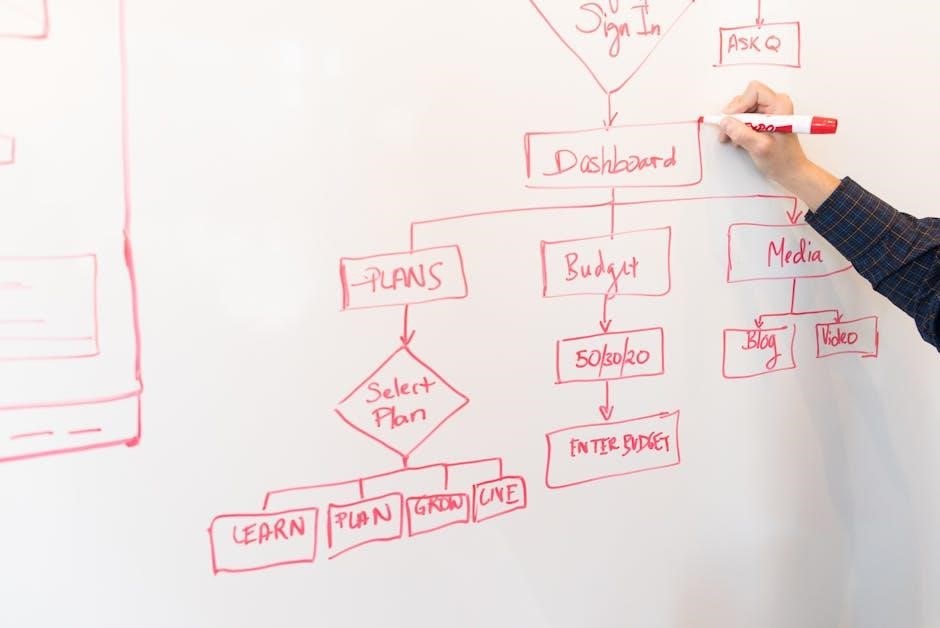
The MG8702’s dashboard provides a centralized overview of your network status and settings. Upon logging in, you’ll see key information like internet connectivity, Wi-Fi status, and connected devices. A prominent section displays upstream and downstream data rates, indicating your internet speed.
The left-hand menu offers access to various configuration options, including network settings, security features, and advanced controls. Familiarize yourself with sections like ‘Status’, ‘Wireless’, ‘LAN’, and ‘Security’. Regularly checking the ‘Events’ log can help identify and troubleshoot potential issues. The interface is designed for intuitive navigation.
Network Configuration
Customize your network with ease! This section guides you through setting up Wi-Fi, changing passwords, and configuring a secure guest network for visitors.
Setting Up Wi-Fi
Accessing the Wi-Fi setup is crucial for establishing a wireless connection. Begin by logging into the MG8702’s web interface using the default credentials (refer to the ‘Understanding the MG8702 Interface’ section). Navigate to the Wireless settings, typically found under Network or Wi-Fi configuration. Here, you’ll find options to enable or disable the wireless radio, and configure the SSID (network name).
Choose a unique and easily identifiable SSID. Select a wireless security mode – WPA2/WPA3 Personal is highly recommended for robust protection. Then, create a strong, complex password for your Wi-Fi network. Ensure the password meets the minimum length and complexity requirements specified in the interface. Save your changes, and your Wi-Fi network will be broadcast, allowing devices to connect.
Changing the Wi-Fi Password
Regularly updating your Wi-Fi password enhances network security. Access the MG8702’s web interface and navigate to the Wireless settings, similar to the initial setup process. Locate the ‘Wi-Fi Password’ or ‘Wireless Key’ field. You’ll likely be prompted to enter your current password before allowing a change.
Create a new, strong password. Utilize a combination of uppercase and lowercase letters, numbers, and symbols for maximum security. Avoid easily guessable information like birthdays or names. After entering the new password, confirm it to prevent errors. Save the changes; this may temporarily disconnect devices, requiring them to reconnect with the updated credentials.
Configuring Guest Network
The MG8702 allows creating a separate Guest Network for visitors, enhancing your primary network’s security. Access the modem/router’s web interface and navigate to the ‘Guest Network’ section, typically found under Wireless settings. Enable the Guest Network feature and define a unique SSID (network name) for easy identification.
Set a strong password for the Guest Network. This password provides access for visitors, so choose a secure one. You can also configure bandwidth limits to prevent guests from consuming excessive internet resources. Consider enabling a time limit for guest access, automatically disconnecting them after a set period. This isolates guest traffic from your personal devices and data.

Security Features
The MG8702 offers robust security, including a built-in firewall, password protection, and automatic security updates to safeguard your network and personal information.
Firewall Settings
The Motorola MG8702’s integrated firewall acts as a crucial barrier against unauthorized access to your home network. It meticulously examines incoming and outgoing data packets, blocking those that don’t meet pre-defined security criteria.
Through the web interface, you can typically adjust firewall sensitivity levels – from low, medium, to high – balancing security with potential performance impacts. Higher settings offer greater protection but might slightly slow down internet speeds.
The MG8702 often includes features like SPI (Stateful Packet Inspection) which provides a more thorough examination of network traffic. You can also view logs detailing blocked connection attempts, offering insights into potential threats. Regularly reviewing these logs is a proactive security measure.
Password Management
Robust password practices are paramount for securing your Motorola MG8702 and your entire network. The default administrator password must be changed immediately upon initial setup to prevent unauthorized access to your router’s settings.
Choose a strong, unique password – a combination of uppercase and lowercase letters, numbers, and symbols – and avoid easily guessable information like birthdays or pet names.
The MG8702 interface allows you to periodically update your password for enhanced security. Consider enabling two-factor authentication (if available) for an extra layer of protection. Regularly review connected devices and remove any unrecognized ones to maintain control over your network access.
Security Updates
Maintaining the latest firmware on your Motorola MG8702 is crucial for protecting your network from emerging security threats. Manufacturers regularly release updates that patch vulnerabilities and improve overall system stability.
The MG8702 typically offers automatic firmware update options within its web interface; enabling this feature ensures your modem/router receives critical security patches promptly.
Periodically check for updates manually, even with automatic updates enabled, to confirm the latest version is installed. Ignoring security updates can leave your network susceptible to malware, unauthorized access, and other cyberattacks. Prioritize these updates for a secure online experience.

Troubleshooting Common Issues
Resolve frequent problems like connectivity loss, slow Wi-Fi, or modem reboots with our guide, offering practical steps for a stable network experience.
Internet Connectivity Problems
Experiencing internet outages or slow speeds? First, power cycle your MG8702 by unplugging it for 30 seconds, then reconnecting. Verify all coaxial and Ethernet cables are securely fastened.
Check your internet service provider (ISP) for reported outages in your area. Log into the MG8702’s web interface to confirm it’s receiving a signal.
If the signal is weak, contact your ISP. Ensure your account is active and payments are current. Try connecting a computer directly to the modem via Ethernet to bypass Wi-Fi interference.
If direct connection works, the issue lies with your Wi-Fi network.
Wi-Fi Signal Issues
Weak Wi-Fi? Begin by repositioning the MG8702 to a central, open location, away from obstructions like walls and metal objects. Minimize interference from other electronic devices operating on the 2.4 GHz band (microwaves, Bluetooth).
Check for firmware updates for your MG8702, as these often include Wi-Fi performance improvements. Utilize the MG8702’s web interface to analyze channel congestion and select a less crowded Wi-Fi channel.
Consider enabling the 5 GHz band for faster speeds, though it has a shorter range. Ensure your devices support 5 GHz. Experiment with different Wi-Fi modes (802.11ac/n/g/b).
Modem Rebooting
Frequent MG8702 reboots indicate potential issues. First, check coaxial cable connections to ensure they are secure and undamaged. Examine the modem’s logs via the web interface for error messages that might pinpoint the cause.
Confirm your internet service provider (ISP) isn’t experiencing outages in your area. Overheating can cause reboots; ensure adequate ventilation around the modem.
If the problem persists, a firmware update might resolve stability issues. As a last resort, perform a factory reset, but remember this will erase your custom settings. Contact your ISP for further assistance if reboots continue.

Advanced Settings
Explore port forwarding, UPnP configuration, and DNS settings within the MG8702 interface to optimize network performance and customize advanced functionalities for specific applications.
Port Forwarding
Port forwarding allows external devices to connect to specific services running on your internal network; This is crucial for hosting game servers, accessing security cameras remotely, or running a web server from home. Within the MG8702’s web interface, locate the Port Forwarding section – typically found under Advanced Settings or Applications.
You’ll need to define a service name, specify the internal IP address of the device, set the external port range, and define the internal port. Ensure the internal IP address is static to prevent connection issues. Carefully consider security implications, as opening ports can potentially expose your network. Always forward only the necessary ports and keep your device’s software updated to mitigate risks. Remember to save your changes after configuring each port forwarding rule.
UPnP Configuration
Universal Plug and Play (UPnP) automatically configures port forwarding for applications that require it, simplifying network access for devices like game consoles and media servers. The Motorola MG8702 typically has UPnP enabled by default, but you can manage it within the router’s web interface, usually under Advanced Settings or Security.
While convenient, UPnP can pose security risks if exploited. Consider disabling it if you don’t actively use applications requiring automatic port forwarding. If enabled, regularly review connected devices to ensure only trusted applications are utilizing UPnP. Monitoring UPnP activity can help identify potential unauthorized access. Remember to save any changes made to the UPnP settings within the MG8702 interface.
DNS Settings
Domain Name System (DNS) settings translate website names into IP addresses, crucial for internet browsing. The Motorola MG8702 usually obtains DNS server addresses automatically from your Internet Service Provider (ISP). However, you can manually configure these settings within the router’s web interface, typically found under Advanced Settings or Network Configuration.
Consider using public DNS servers like Google DNS (8.8.8.8 and 8.8.4.4) or Cloudflare DNS (1.1.1.1 and 1.0.0.1) for potentially faster and more reliable internet access. Changing DNS servers can sometimes improve browsing speed and security. Remember to save any modifications made to the DNS settings within the MG8702 interface for the changes to take effect.

Firmware Updates
Regular firmware updates enhance performance, security, and stability of your Motorola MG8702. Check for updates via the web interface to ensure optimal functionality.
Checking for Updates
To check for firmware updates on your Motorola MG8702, first access the web-based interface using a connected computer or mobile device. Navigate to the administration or system settings section – the exact location may vary slightly depending on the firmware version. Within these settings, you should find an option specifically labeled “Firmware Update” or similar.
Selecting this option will initiate a check for available updates from Motorola’s servers. The modem/router will then display the current firmware version and, if a newer version is available, provide details about it. It’s crucial to regularly check for updates, as they often include important security patches and performance improvements, safeguarding your network and enhancing overall user experience. The interface will guide you through the update process if one is found.
Manual Firmware Update
If an automatic check doesn’t detect a new firmware version for your Motorola MG8702, or if you’ve downloaded a firmware file directly from Motorola’s support website, you can perform a manual update. Access the modem/router’s web interface and navigate to the firmware update section, as described previously.
Instead of automatically checking, you’ll typically find an option to “Browse” or “Choose File.” Select the downloaded firmware file from your computer. Important: Ensure the file is specifically designed for the MG8702 model to avoid potential issues. Initiate the update process and avoid interrupting it – power loss during the update can brick the device.

Factory Resetting the MG8702
Restoring the MG8702 to factory defaults erases all custom settings, returning it to its original state for troubleshooting or setup purposes.
Reset Procedure
To perform a factory reset on your Motorola MG8702, locate the recessed reset button on the back panel of the device. This button typically requires a straightened paperclip or similar small object to access. With the modem/router powered on, press and hold the reset button for approximately 15-20 seconds.
During this time, observe the indicator lights on the front panel; they will likely blink or change state to signify the reset process is underway. Continue holding the button until the lights begin to cycle, indicating the reset is complete. Release the button and allow the MG8702 to reboot.
Please note that this process will erase all personalized settings, including Wi-Fi passwords and network configurations. Be prepared to reconfigure the device after the reset is finished.
Post-Reset Configuration
Following a factory reset, your Motorola MG8702 will revert to its default settings, requiring a complete reconfiguration. Begin by connecting a computer to the modem/router via Ethernet cable for a stable initial setup. Access the web interface using the default IP address (typically 192.168.100.1) and login credentials (usually ‘admin’ for both username and password).
Once logged in, you’ll need to re-establish your internet connection by entering your ISP-provided settings. Then, configure your Wi-Fi network by setting a new SSID (network name) and a strong, unique password.
Don’t forget to explore security settings and update the firmware to the latest version for optimal performance and protection.

Technical Specifications
The MG8702 supports DOCSIS 3.1, offering maximum speeds up to 1.2 Gbps, and features dual-band Wi-Fi with 2.4GHz and 5GHz bands, plus Gigabit Ethernet ports.
Wireless Standards Supported
The Motorola MG8702 is engineered to deliver robust and reliable wireless connectivity, supporting the latest Wi-Fi standards for optimal performance. Specifically, it fully supports 802.11ax (Wi-Fi 6), enabling faster speeds, increased capacity, and improved efficiency in congested network environments.
Backward compatibility is also a key feature, ensuring seamless operation with older devices utilizing 802.11ac (Wi-Fi 5), 802.11n, 802.11g, and 802.11b standards; This broad compatibility allows for a mixed-device environment without compromising performance.
The dual-band functionality further enhances flexibility, operating simultaneously on both the 2.4 GHz and 5 GHz frequencies to minimize interference and maximize throughput for various applications.
Maximum Wireless Speed
The Motorola MG8702 boasts impressive maximum wireless speeds, designed to handle bandwidth-intensive applications and multiple connected devices simultaneously. Utilizing Wi-Fi 6 technology (802.11ax), the MG8702 achieves a theoretical maximum speed of up to 1.8 Gbps on the 5 GHz band.
On the 2.4 GHz band, it supports a theoretical maximum speed of up to 600 Mbps, providing a stable connection for devices that don’t require the highest speeds. These speeds are subject to real-world conditions,
including interference, distance from the router, and the capabilities of connected devices. However, the MG8702 consistently delivers a fast and reliable wireless experience.
Ports and Interfaces
The Motorola MG8702 is equipped with a comprehensive array of ports and interfaces to accommodate various connectivity needs. On the rear panel, you’ll find one Gigabit Ethernet WAN port for connecting to your internet service provider’s network. Additionally, there are four Gigabit Ethernet LAN ports for wired connections to computers, gaming consoles, and other devices.
A USB 3.0 port enables connection to external storage devices for network-wide file sharing.
The MG8702 also features a coaxial (F-connector) input for cable connection and a power input.